When you hear “The wireless customer you are calling is not available,” it is a network-generated message indicating that your call cannot be completed at the moment. This message does not necessarily mean the person you are calling is ignoring you. Instead, it usually points to a technical issue either on their device, with their service, or on the network itself. Understanding this message helps avoid confusion and allows you to take appropriate steps to resolve the issue.
“The wireless customer you are calling is not available” indicates that the network cannot reach the recipient at that moment due to reasons such as a switched-off phone, poor signal, network congestion, or call blocking. It does not necessarily mean the person is ignoring the call, as the issue is often temporary or technical. Restarting the phone, checking network coverage, using Wi-Fi calling, or contacting the service provider can usually resolve the problem.
In this article, we discuss the topic of “the wireless customer you are calling is not available“.
How Mobile Networks Interpret “Not Available”
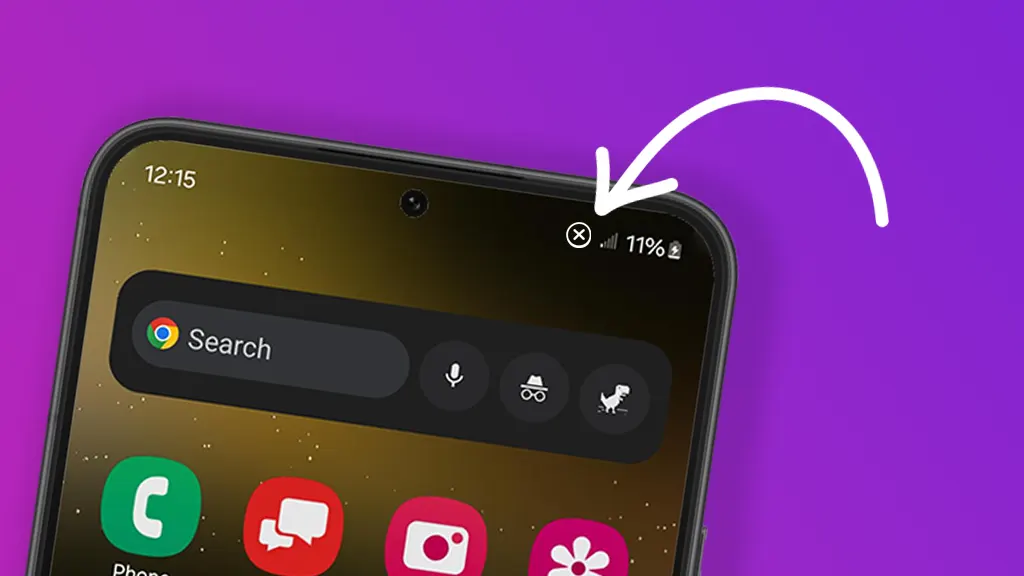
Mobile networks generate this message when the recipient’s device cannot be reached. The network constantly checks the status of every connected device, and if the phone is off, out of coverage, or unreachable for another reason, it triggers this message. It’s a standard telecommunication protocol designed to inform the caller without exposing personal device details. Essentially, it acts as an automated alert that the call cannot be delivered.
Common Causes Behind the Error
Several factors can lead to this message appearing. Common causes include the recipient’s phone being switched off, network congestion, or technical issues with the carrier. Other causes may involve SIM card problems, call forwarding configurations, or even software glitches on either device. By identifying the root cause, you can often resolve the problem quickly or find alternative ways to reach the person.
Phone Is Powered Off or Battery Dead
One of the simplest explanations for this message is that the recipient’s phone is turned off or has a dead battery. When the device is offline, the network cannot establish a connection, resulting in the “not available” alert. This is a temporary issue and usually resolves as soon as the phone is powered back on. Ensuring the person you are calling keeps their device charged and powered helps avoid this scenario.
Poor or No Signal Coverage
Another major reason for the error is poor or no signal coverage. If the recipient is in a remote area, a basement, or inside a building with weak network reception, the call cannot be completed. Modern mobile networks are extensive but still have dead zones where coverage is minimal or nonexistent. Checking signal strength or asking the recipient to move to a better location can often solve this issue.
Inconsistent or Dead Zones in Network Coverage
Even areas that generally have good network coverage can experience dead zones. Network interruptions, maintenance, or interference from buildings and environmental factors may temporarily block calls. Mobile devices rely on a consistent connection to the nearest tower, and any disruption can trigger the “not available” message. Planning calls during times of stronger reception or using Wi-Fi calling can help mitigate this problem.
The Impact of Call Forwarding Settings
Call forwarding can also cause this message to appear if it is misconfigured. If the recipient has set their calls to forward to another number that is unreachable, your call will fail. Certain carrier-specific forwarding rules may trigger the “not available” alert instead of ringing the forwarded number. Verifying forwarding settings and correcting them ensures calls go through without errors.
Your Number Might Be Blocked
If your calls consistently result in the “not available” message, it is possible the recipient has blocked your number. When a number is blocked, the network prevents the call from connecting and may display this generic message instead of alerting you to the block. This is a privacy measure built into mobile systems. Confirming with the recipient through alternative means can clarify whether blocking is the cause.
Roaming or Network Transition Issues
When a person is traveling, especially internationally, their phone may be on roaming. Calls may fail if the device is transitioning between networks or if the roaming agreement is limited. In such cases, the “not available” message appears because the home network cannot connect to the recipient. Ensuring proper roaming settings or using Wi-Fi-based communication apps can prevent these failures.
Temporary Wireless Service Outage
Occasionally, the error occurs due to a temporary service outage from the carrier. Network maintenance, hardware failures, or regional disruptions can make calls impossible to deliver. These outages are usually short-lived, and the issue resolves itself once the network is restored. Checking with the carrier’s outage updates can confirm if this is the reason behind the error.
Device-Specific Glitches and Bugs
Sometimes the recipient’s device experiences software bugs or glitches that prevent it from accepting calls. Operating system errors, corrupted apps, or outdated firmware can all interfere with normal functionality. Restarting the phone, updating the system, or clearing minor software issues often resolves these problems and restores normal call connectivity.
The Role of Older Devices in Call Failures
Older phones or devices may lack compatibility with modern network protocols. Certain legacy phones struggle to connect with 4G or 5G networks, which can result in the “not available” message. Upgrading to a newer device ensures smoother connectivity and reduces the likelihood of failed calls caused by hardware limitations.
Airplane Mode or Do Not Disturb Turned On
If the recipient has enabled airplane mode, all wireless communications are disabled, preventing any calls from coming through. Similarly, Do Not Disturb settings may reject calls automatically, sending a message to the network that the phone is unavailable. Understanding these features helps explain why the error appears and avoids unnecessary confusion.
Network Congestion: Too Many Calls at Once
High traffic on mobile networks can also trigger this error. When too many calls are attempted simultaneously in one area, the network may be unable to handle additional connections. This congestion results in the “not available” message as a temporary measure. Waiting and trying the call later is often the simplest solution.
SIM Card Problems Causing Connectivity Issues
A faulty or damaged SIM card can prevent a phone from registering with the network. If the SIM card is not properly seated, corrupted, or malfunctioning, calls may fail even if the device itself is working fine. Inspecting the SIM card, reinserting it, or replacing it can resolve this common issue and restore normal call function.
Incorrect or Loose SIM Card Placement
Even a slight misalignment of the SIM card inside the phone can disrupt network connectivity. Phones rely on precise contact points to read the SIM properly, and any misplacement can trigger errors, including “not available.” Ensuring the SIM card is correctly positioned in the tray usually resolves this issue quickly.
Software Issues and Outdated System
Outdated phone software can also cause call failures. Older operating systems may not fully support current network protocols, leading to connectivity problems. Updating the device to the latest firmware or applying system patches helps maintain compatibility and prevents the “not available” error from recurring.
Network Maintenance or Scheduled Downtime
Mobile carriers regularly perform maintenance to upgrade systems, fix bugs, or enhance network performance. During these periods, some calls may fail to connect, triggering the “not available” message. This is a temporary situation and usually affects only a specific region or network. Checking the carrier’s announcements or trying again later often resolves the issue.
The Number Is Disconnected or Deactivated
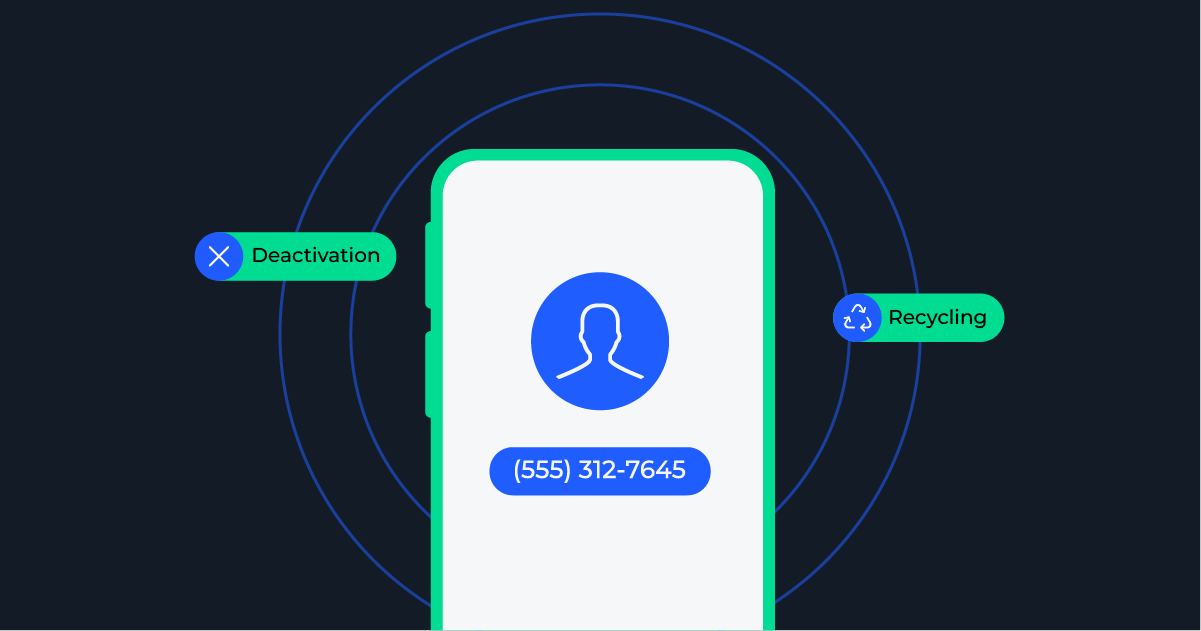
If the person you are calling has disconnected their number or it has been deactivated, the network cannot complete the call. This situation occurs when service is canceled, the number is inactive, or the account is suspended. In such cases, the “not available” message acts as a notification that the recipient’s number is no longer reachabl.
What “Intercept Message” Means in Telephony
An intercept message is a network-generated notification indicating that a call cannot be completed. Messages like “The wireless customer you are calling is not available” fall into this category. They serve as a generic alert to protect the recipient’s privacy while informing the caller of a connection issue. Understanding intercept messages helps distinguish technical errors from intentional call blocks.
How Geographic Location Affects Call Availability
A recipient’s physical location can impact call success. Remote areas, tunnels, mountains, or underground spaces often have weak network coverage. If the device cannot reach the nearest cell tower, the network will report the phone as unavailable. Being aware of location-based limitations can explain why calls fail in certain environments.
The Phone Is in a Building or Underground
Buildings with thick walls or underground locations like basements, subways, and parking garages can interfere with cellular signals. Even in areas with otherwise strong coverage, the device may be unreachable. Using Wi-Fi calling or moving to a higher location often resolves these signal-related issues.
Power Outages at the Receiver’s End
If the recipient’s area experiences a power outage, their phone may not be able to function properly. Landline-dependent devices, mobile towers, or charging devices affected by power cuts can all lead to the “not available” message. This is typically a temporary issue until power is restored.
The Effect of Dead Zones on Call Success
Dead zones are areas with little or no network coverage. Calls attempted in these regions often fail, leading to the standard “not available” message. Even modern networks have gaps, especially in rural or geographically challenging areas. Identifying dead zones and planning calls accordingly can improve connectivity.
How to Check If You Are the Problem (Caller’s Side)
Sometimes the caller’s device or network causes the issue. Checking your phone for signal strength, network settings, and software updates ensures your device can successfully make calls. Using another phone or network can help confirm whether the problem is on your end or the recipient’s side.
Restarting Your Device: When and Why
Restarting your phone is a simple but effective solution to many connectivity issues. A reboot refreshes network connections, clears temporary glitches, and often resolves minor software bugs. If you consistently encounter the “not available” message, restarting both your device and the recipient’s device (if possible) is a useful first step.
Resetting Network Settings to Fix Call Issues
Resetting network settings on a phone can solve persistent call problems. This action clears saved networks, APN settings, and cached configurations that may interfere with normal operation. After resetting, reconnecting to the network often restores proper call functionality and eliminates the “not available” message.
Unblocking a Number — Step-by-Step Guide

If your number has been blocked, calls may fail and display the “not available” message. Unblocking involves checking the recipient’s phone settings and ensuring your number is allowed. The process varies by device but usually includes navigating to the block list, locating your number, and removing it. Once unblocked, calls should connect normally without any errors.
Reinsert or Replace Your SIM Card
SIM card issues are a common cause of call failures. Removing the SIM card and reinserting it can reestablish proper contact with the network. If the SIM is damaged or corrupted, replacing it with a new one ensures that your phone can connect to the network and make successful calls.
Use Wi-Fi Calling as a Workaround
Wi-Fi calling allows you to make calls even when cellular signal is weak or unavailable. By routing calls through an internet connection, Wi-Fi calling bypasses many common network problems. Enabling this feature on both devices can prevent the “not available” message, especially in buildings, basements, or dead zones.
Alternative Ways to Reach Someone (Text, Email, Social Media)
When calls fail repeatedly, alternative communication methods can help. Text messages, emails, or social media platforms can bypass network issues and allow you to contact the person. This ensures your message is delivered even if the recipient’s phone is temporarily unavailable.
When to Call Your Mobile Service Provider
Persistent call failures may indicate a deeper network issue. Contacting your carrier allows them to check network performance, verify account status, and resolve technical problems. Customer service can provide guidance, report outages, and suggest solutions to ensure successful calls.
How to Report a Persistent “Not Available” Issue
If the problem continues, reporting it formally ensures proper investigation. Provide details like call times, frequency, and the recipient’s number to the carrier. They can run diagnostics, check for network errors, and offer solutions to resolve ongoing connectivity issues.
Understanding Coverage Maps and Network Reach
Coverage maps show the strength and reach of mobile networks in specific areas. Reviewing these maps helps identify regions prone to weak signals or dead zones. Understanding coverage limitations can explain why calls sometimes fail and guide you to better locations for reliable communication.
Identifying Roaming-Related Call Failures
Roaming often causes call issues, especially internationally. The recipient’s device may struggle to connect due to incompatible networks, additional charges, or restricted service. Ensuring proper roaming settings or using messaging apps over Wi-Fi can help maintain connectivity while traveling.
How to Detect If Your Number Is in the Block List
Repeated “not available” messages from a specific contact may indicate that your number is blocked. While carriers typically do not disclose this information, testing with another number or confirming through alternative communication can reveal if a block is in place. Removing the block restores normal call functionality.
Customer Limitations Set by Carrier or Organization
Some carriers or organizations impose call restrictions. For example, business accounts may limit incoming calls or restrict external communication. These restrictions can trigger the “not available” message if the recipient’s line cannot accept your call. Understanding such limitations helps clarify the cause.
Conclusion
“The wireless customer you are calling is not available” is a common message that can be caused by a variety of factors, ranging from the recipient’s phone being turned off, network issues, or SIM card problems, to more technical issues like software glitches or network congestion. Understanding the possible reasons helps you troubleshoot effectively and choose alternative methods to reach the person. Solutions like restarting devices, checking network settings, using Wi-Fi calling, or contacting your carrier can resolve most problems. By following preventive measures and being aware of network limitations, you can ensure smoother communication and minimize the frustration of failed calls.
FAQs
1. Why do I keep getting “The wireless customer you are calling is not available”?
This message appears when the recipient’s phone is unreachable due to being turned off, in a dead zone, blocked, or facing network issues. It’s usually temporary and not always intentional.
2. Can this happen if the recipient has blocked me?
Yes, if your number is blocked, the network may display this generic message instead of revealing the block, protecting the recipient’s privacy.
3. Will restarting my phone fix this issue?
Restarting your device can refresh network connections and clear minor software glitches, which often resolves temporary connectivity problems.
4. Can Wi-Fi calling prevent this error?
Yes, Wi-Fi calling bypasses cellular network issues and allows calls to connect through an internet connection, especially useful in areas with weak signal coverage.
5. Should I contact my carrier if the problem persists?
Absolutely. Persistent issues may indicate network problems, account restrictions, or technical faults. Your carrier can help diagnose and resolve the problem.
6. Is the error related to my device or the recipient’s device?
It could be either. Checking your network, SIM card, and device settings is important, but the issue may also be on the recipient’s end, like a powered-off phone or software glitch.
7. Can location affect call availability?
Yes, being in a dead zone, underground, or in areas with poor network coverage can prevent calls from connecting and trigger the “not available” message.
8. Does network congestion cause this message?
Yes, during peak hours or in crowded areas, too many calls on the same network can prevent your call from connecting, resulting in the “not available” message.
9. Can outdated software cause call failures?
Absolutely. Older operating systems or outdated apps can interfere with network connections. Updating your phone’s software often resolves these issues.
10. Will changing or replacing my SIM card help?
Yes, a damaged or improperly placed SIM card can prevent calls from connecting. Reinserting or replacing the SIM card can restore proper network functionality.
Keep an eye for more latest news & updates on premiumtechy!