The Xbox 360 Wireless Receiver is a small USB device that allows you to connect your Xbox 360 wireless controllers to a Windows PC. Designed primarily for gamers who want a seamless console-like experience on their PC, it supports multiple controllers at once and works with many games that support gamepads. Unlike wired controllers, it removes the hassle of cables while offering the same functionality. This receiver acts as a bridge between your PC and Xbox controllers, enabling smooth communication. It is compatible with both original Microsoft receivers and some third-party options. Its plug-and-play design makes it convenient for both casual and professional gamers.
The Xbox 360 Wireless Receiver allows you to connect up to four Xbox 360 wireless controllers to a Windows PC for smooth, cable-free gaming. It works via a 2.4GHz wireless connection, supports vibration feedback, and is compatible with Windows 10/11 using proper drivers. With easy setup and wide game support, it delivers a console-like PC gaming experience.
In this article, we discuss the topic of “xbox 360 wireless receiver“.
How the Xbox 360 Wireless Receiver Works
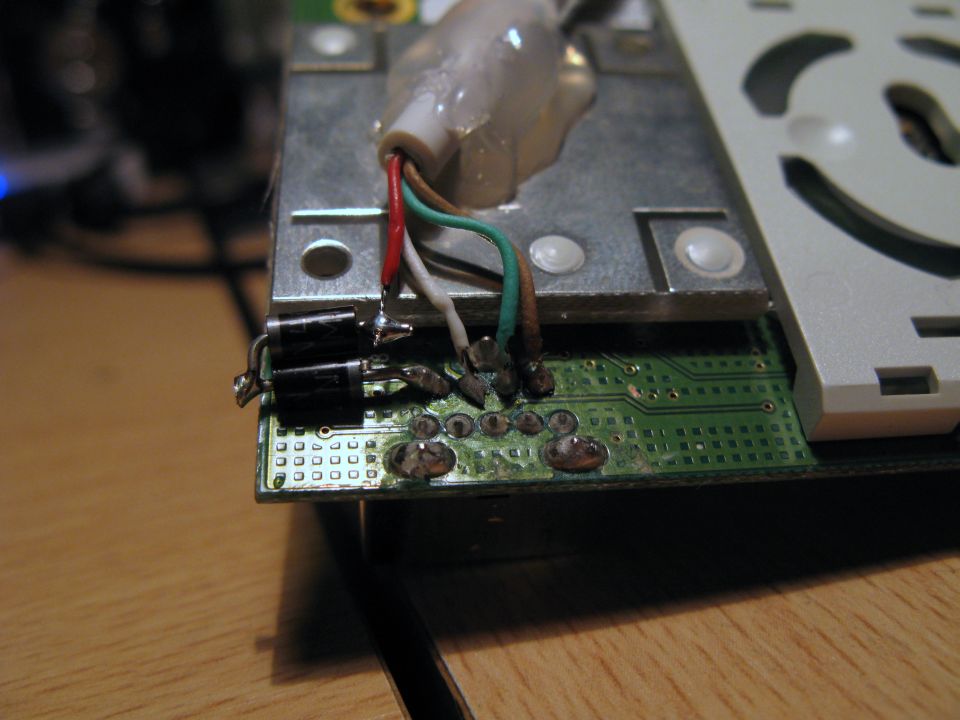
The Xbox 360 Wireless Receiver works by communicating with your Xbox 360 controller over a 2.4GHz wireless frequency. Once plugged into your computer’s USB port, it establishes a stable connection with the controller, transmitting button inputs and analog stick movements to the PC. The receiver is designed to handle multiple controllers at the same time, making it perfect for multiplayer games. It also supports vibration feedback, so gameplay feels more immersive. The device comes with built-in drivers that Windows usually recognizes automatically, but manual installation may be required for older systems. Its wireless range ensures comfortable gameplay from several feet away without interruption.
Key Features of the Xbox 360 Wireless Receiver
The Xbox 360 Wireless Receiver comes with several features that enhance PC gaming. It allows up to four controllers to connect simultaneously, supporting multiplayer games on a single computer. The device includes vibration feedback, mirroring the tactile experience of console gaming. It has LED indicators that show the number of connected controllers and connection status. Its plug-and-play nature simplifies setup, and compatibility extends from Windows XP to Windows 10/11 with proper drivers. Some receivers also work with racing wheels and other specialized controllers. The compact design makes it easy to carry, and it can be used with both desktops and laptops.
Xbox 360 Wireless Receiver Compatibility With Windows
Xbox 360 Wireless Receivers are compatible with a wide range of Windows operating systems. Microsoft provides drivers for Windows XP, Vista, 7, 8, 10, and even 11. For older versions, manual installation may be required, while newer versions often detect the device automatically. Compatibility is not limited to gaming but extends to PC applications that accept gamepad input. Both 32-bit and 64-bit systems are supported. However, some third-party receivers may have limited support, so checking driver availability is essential. The receiver is also compatible with popular gaming platforms like Steam, making it versatile for modern gamers.
How to Connect an Xbox 360 Controller Using the Wireless Receiver
To connect an Xbox 360 controller, plug the wireless receiver into your PC’s USB port. Windows should detect the device and install the necessary drivers automatically. Once installed, press the controller’s “Guide” button and the receiver’s sync button to pair them. The LED on the controller will flash, indicating a successful connection. You can then configure the controller within your game settings. If multiple controllers are connected, each will be assigned a quadrant on the receiver’s LED display. This process ensures a stable and responsive connection for all types of gameplay, including competitive or casual sessions.
Setting Up Your Xbox 360 Wireless Receiver for the First Time
Setting up the Xbox 360 Wireless Receiver is straightforward. First, plug it into a USB port on your PC. Next, allow Windows to automatically install the drivers or download them manually from Microsoft’s official site. Press the sync button on the receiver, then the “Guide” button on your controller. Wait for the LED indicators to show a successful connection. After syncing, test the controller in a game to ensure responsiveness. Adjust any in-game settings for sensitivity or vibration. Proper initial setup ensures that your receiver and controllers perform optimally without connection interruptions.
Step-by-Step Guide to Installing Xbox 360 Wireless Receiver Drivers
Installing the drivers for your Xbox 360 Wireless Receiver is crucial to ensure proper functionality. Start by plugging the receiver into an available USB port on your PC. Windows may automatically detect the device and attempt to install generic drivers. If this fails, download the official Microsoft drivers from their website. Run the installation package and follow on-screen instructions. Once installed, restart your computer to ensure the drivers are correctly applied. After restarting, test the receiver with your controller to confirm proper operation. Proper driver installation minimizes connection issues and maximizes compatibility with games.
Troubleshooting Xbox 360 Wireless Receiver Connection Issues
Connection issues are common, especially with older PCs or third-party receivers. Start by checking if the receiver is recognized in Device Manager. If not, unplug it and try another USB port. Ensure the drivers are up-to-date and reinstall if necessary. Interference from Wi-Fi routers or other wireless devices can also cause connectivity problems. Restart both the PC and controller, and try re-syncing them. Using an extension cable can sometimes improve connectivity if the receiver is too far from the controller. Following these steps resolves most typical connection problems.
Best Practices for Using an Xbox 360 Wireless Receiver on PC
To maximize your experience, keep your receiver close to your gaming area to avoid range issues. Avoid placing it behind metal objects or near other wireless devices that may interfere with the 2.4GHz signal. Always use original or certified third-party receivers to prevent driver conflicts. Regularly check for driver updates to maintain compatibility with new Windows updates. Disconnect the receiver when not in use to reduce potential interference. Store it safely to avoid damage to the USB connector or internal circuits. These best practices ensure a stable and long-lasting performance for your Xbox 360 controller on PC.
Understanding the Range of Xbox 360 Wireless Receivers
The typical wireless range of an Xbox 360 receiver is around 30 feet (approximately 9 meters). Walls, furniture, and other electronic devices can reduce this range. Keep the receiver in a line-of-sight position whenever possible to maximize performance. Using a USB extension cable allows flexible placement of the receiver for better reception. Multiple receivers in the same area may interfere with each other, so proper placement is key in multiplayer setups. The range is sufficient for most living room setups, providing freedom of movement during gaming sessions. Understanding the limitations helps avoid connection dropouts.
How Many Controllers Can Be Connected to One Receiver?
An Xbox 360 Wireless Receiver can support up to four controllers simultaneously, which is perfect for local multiplayer gaming. Each controller is assigned a quadrant on the receiver’s LED display. This allows easy identification of which controller is connected to which slot. It’s ideal for party games or co-op gameplay on PC. You can also connect multiple receivers if more controllers are needed, though proper configuration is required to avoid conflicts. Pairing controllers is straightforward using the receiver’s sync button, and each controller maintains its connection independently for smooth gameplay.
Differences Between Original and Third-Party Xbox 360 Wireless Receivers
Original Microsoft Xbox 360 receivers offer the highest compatibility and reliability. They come with official drivers and support all controller features, including vibration. Third-party receivers are often cheaper but may have limited driver support, reduced range, or compatibility issues with certain games. Some third-party devices require additional driver installations or manual configuration. Counterfeit receivers may not work properly on newer versions of Windows. Choosing an original or certified receiver is recommended for consistent performance, while third-party options can be used if verified for compatibility.
How to Sync Xbox 360 Controllers With a Wireless Receiver
Syncing controllers is simple but crucial for smooth gaming. Press the sync button on the receiver; the LED will start flashing. Then, press the “Guide” button on the controller until its LED begins flashing as well. When the LEDs stop blinking and remain solid, the controller is synced. Repeat this process for additional controllers. If the connection fails, reset the controller and retry. Proper syncing ensures that button inputs are correctly transmitted to the PC without lag or disconnection.
Xbox 360 Wireless Receiver LED Indicators Explained
The LED indicators on an Xbox 360 Wireless Receiver provide useful information about controller connections. Each quadrant on the receiver corresponds to a controller slot. When a controller is synced, its quadrant LED lights up, indicating a successful connection. Flashing LEDs typically signify that the device is searching for a controller or syncing. If no LEDs light up, the receiver may not be powered or recognized by the PC. Understanding the LED indicators helps troubleshoot connection issues quickly and ensures all controllers are properly connected for multiplayer gaming.
Common Problems With Xbox 360 Wireless Receivers
Despite their simplicity, Xbox 360 Wireless Receivers can encounter common issues. The receiver may not be detected by the PC, often due to outdated drivers or USB port issues. Controllers may fail to sync or disconnect randomly, sometimes caused by interference from other wireless devices. Some third-party receivers have limited compatibility with newer Windows versions. Additionally, vibration feedback may not work if drivers are missing. Identifying these problems early allows gamers to fix issues before they impact gameplay.
How to Fix Xbox 360 Wireless Receiver Not Detected on Windows
If Windows fails to detect the receiver, start by trying a different USB port. Make sure the drivers are installed correctly and reinstall them if necessary. Checking Device Manager can reveal errors or conflicts with other devices. Avoid USB hubs initially, as direct connections to the motherboard are more reliable. Disabling conflicting drivers or third-party wireless adapters may also help. Restart your PC and retry syncing. These steps resolve most detection issues and restore functionality.
Can Xbox 360 Wireless Receiver Work on Windows 10/11?
Yes, the Xbox 360 Wireless Receiver works on both Windows 10 and Windows 11 with proper drivers. Windows may automatically detect the device and install drivers, but manual installation is sometimes needed. Compatibility extends to 64-bit systems, ensuring modern PCs can use the receiver effectively. Some third-party receivers may require extra configuration. Once installed, it functions like on older Windows versions, supporting up to four controllers simultaneously. Gamers can also use the receiver with platforms like Steam for seamless gameplay.
Using Xbox 360 Wireless Receiver With Emulators
Emulators often support Xbox 360 controllers through the wireless receiver, allowing console-style gameplay on PC. Popular emulators for retro consoles, Nintendo, or PlayStation often recognize controller inputs via XInput. This setup replicates the console experience with accurate button mapping. Ensuring the receiver drivers are up-to-date is essential for compatibility. Some emulators may require manual configuration to assign buttons correctly. Using a wireless receiver eliminates cable clutter while maintaining full control functionality.
Compatibility of Xbox 360 Wireless Receiver With Games
The Xbox 360 Wireless Receiver is compatible with most PC games that support gamepads. Games designed for XInput or DirectInput typically detect the controller automatically. Multiplayer games, racing simulators, and flight games benefit from multiple controllers connected to a single receiver. Certain older games may require additional configuration to recognize the controller. Compatibility also depends on driver installation and operating system version. Overall, it provides a smooth and immersive gaming experience across a wide range of genres.
How to Connect Xbox 360 Wireless Receiver via USB
Connecting the receiver via USB is straightforward. Plug the receiver into an available USB port on your computer. Wait for Windows to recognize the device and install drivers. Press the sync button on the receiver, then the “Guide” button on your controller to pair them. Once connected, test the controller in a game to confirm functionality. Using a direct USB connection ensures a stable signal and reduces the risk of disconnections compared to USB hubs. Proper placement of the receiver improves reception and gameplay experience.
Xbox 360 Wireless Receiver vs Wired Controller: Which Is Better?
Choosing between a wireless receiver and a wired controller depends on your gaming setup. Wireless receivers offer freedom of movement and support multiple controllers without cables. Wired controllers provide a consistent connection with zero latency, ideal for competitive gaming. Wireless setups may encounter interference or battery issues. However, for casual gaming, wireless receivers offer convenience and flexibility. Gamers often prefer a combination, using wired controllers for precise gameplay and wireless controllers for comfort and multiplayer sessions.
Using Multiple Xbox 360 Wireless Receivers on One PC
Connecting multiple receivers on a single PC allows more than four controllers to be used in large multiplayer setups. Each receiver must have its own drivers installed, and controllers should be synced individually. Proper placement of receivers prevents signal interference and ensures stable connections. Some games may require configuration to recognize controllers connected to different receivers. Using multiple receivers is ideal for LAN parties or local multiplayer tournaments. It expands the gaming potential of a single PC setup significantly.
How to Update Xbox 360 Wireless Receiver Firmware
Updating firmware can improve compatibility and fix bugs. Most original receivers do not require frequent updates, as Windows handles driver functionality. For third-party receivers, check the manufacturer’s website for firmware downloads. Follow the instructions carefully to avoid bricking the device. Firmware updates may enhance connectivity, expand range, or fix LED indicator issues. Keeping firmware and drivers up-to-date ensures the receiver works smoothly with modern games and operating systems.
How to Remove and Reinstall Xbox 360 Wireless Receiver Drivers
Sometimes reinstalling drivers resolves persistent connectivity issues. Start by opening Device Manager and locating the receiver under “Human Interface Devices” or “Universal Serial Bus controllers.” Right-click the device and select “Uninstall.” Disconnect the receiver, restart your PC, and then reconnect it to reinstall the drivers. If Windows does not automatically install them, download the official drivers from Microsoft. Reinstalling ensures corrupted or outdated drivers do not interfere with controller functionality. After installation, test your controller to confirm the connection.
Xbox 360 Wireless Receiver for Mac: Is It Possible?
While designed for Windows, Xbox 360 Wireless Receivers can work on Mac with additional software. Programs like TattieBogle or 360Controller provide Mac driver support for syncing controllers. Installation involves downloading the driver package and following configuration instructions. Not all features, such as vibration feedback, may be supported. Mac users can enjoy many games using the receiver, particularly on Steam or other XInput-compatible platforms. Understanding limitations and using trusted software ensures stable performance on macOS.
How to Extend the Range of Your Xbox 360 Wireless Receiver
The standard wireless range is approximately 30 feet, but physical obstacles can reduce this distance. Using a USB extension cable allows repositioning of the receiver for better line-of-sight with controllers. Keep the receiver away from metal objects or other wireless devices that may cause interference. Elevating the receiver on a desk or shelf can also improve signal strength. For multiplayer setups, placing multiple receivers strategically ensures all controllers remain connected. Understanding these tips maximizes gaming freedom and reduces lag or disconnections.
Best Xbox 360 Wireless Receivers Available Online
Several reliable Xbox 360 Wireless Receivers are available for purchase online. Original Microsoft receivers are highly recommended for compatibility and durability. Certified third-party receivers can also provide stable performance at a lower cost but may lack some features. Amazon, eBay, and other reputable electronics stores offer a variety of options. Checking product reviews, driver support, and compatibility with your operating system ensures you purchase a quality receiver. Investing in a reliable receiver reduces connection issues and enhances the gaming experience.
How to Identify Fake or Low-Quality Wireless Receivers
Fake or low-quality receivers are common in online marketplaces. Signs of counterfeit products include unusually low prices, missing Microsoft branding, or poorly packaged boxes. These devices may not work with newer Windows versions or may lack vibration support. Driver issues are common, and the range is often limited. Always buy from trusted sellers or official retailers. Reading reviews and confirming compatibility with your OS is crucial. Identifying fake receivers before purchase prevents frustration and ensures consistent gameplay.
How to Use Xbox 360 Wireless Receiver With Steam
Steam supports Xbox 360 controllers through the wireless receiver using XInput. Once your controller is synced, Steam automatically recognizes it in most games. You can customize button layouts and sensitivity through Steam’s controller configuration options. The receiver allows seamless multiplayer experiences, with multiple controllers connected to a single PC. Testing controllers in Steam’s Big Picture mode ensures proper functionality before gameplay. This setup is ideal for both casual and competitive gaming on PC.
Using Xbox 360 Wireless Receiver With Non-Xbox Games
Many non-Xbox PC games support the Xbox 360 controller via the wireless receiver. Games that recognize XInput or DirectInput controllers often detect it automatically. Some older titles may require third-party software or manual mapping of buttons. This allows a console-like experience on PC without the need for specialized peripherals. Using the receiver for a variety of games expands its usefulness beyond Xbox-related titles. Ensuring proper driver installation guarantees compatibility with most modern and retro games.
Tips to Improve Xbox 360 Wireless Receiver Connection Stability
Maintaining a stable connection is crucial for uninterrupted gameplay. Avoid placing the receiver near metal objects, routers, or other electronic devices that may cause interference. Keep the receiver elevated for better line-of-sight communication with controllers. Ensure batteries in wireless controllers are fully charged. Using a USB extension cable can optimize placement for optimal range. Regularly check for driver updates to maintain compatibility with new Windows updates. Following these tips reduces lag, disconnections, and improves overall gaming performance.
How to Connect Multiple Controllers to One Wireless Receiver
A single Xbox 360 Wireless Receiver supports up to four controllers. Press the sync button on the receiver and the “Guide” button on each controller sequentially. Each controller will occupy a quadrant on the receiver’s LED display. For multiplayer games, this allows up to four players to enjoy local gameplay. Ensuring controllers are properly synced prevents overlap or connection issues. Using multiple receivers is an option if more than four controllers are needed for larger gaming sessions. Proper setup ensures smooth input from all controllers simultaneously.
Xbox 360 Wireless Receiver for Racing and Flight Simulators
Racing wheels, flight sticks, and other specialized controllers often work with the Xbox 360 Wireless Receiver. Many simulators detect these peripherals via XInput, allowing realistic gameplay. Using a wireless connection removes clutter from long cables, offering a more immersive experience. Configuration may be required to map buttons or adjust sensitivity for specific simulator software. The receiver’s ability to handle multiple devices simultaneously makes it ideal for racing or flight simulator setups. Investing in a quality receiver enhances performance and reduces lag during precise control maneuvers.
Using the Xbox 360 Wireless Receiver for Multiplayer Gaming
The Xbox 360 Wireless Receiver is ideal for local multiplayer gaming. By supporting up to four controllers per receiver, it allows friends or family to join the fun on a single PC. Games like racing, fighting, and co-op adventures benefit from multiple controllers connected simultaneously. Proper placement of the receiver ensures all controllers maintain stable connections without interference. The receiver also supports vibration feedback, enhancing the gaming experience for each player. Multiplayer setups are easier with wireless receivers, removing the hassle of tangled cables.
How to Troubleshoot Interference With Xbox 360 Wireless Receiver
Wireless interference can disrupt controller signals. Devices operating on the 2.4GHz frequency, such as Wi-Fi routers, cordless phones, or Bluetooth devices, may cause lag or disconnections. To minimize interference, keep the receiver away from such devices. Using a USB extension cable can help reposition the receiver for better reception. Ensuring controllers have fully charged batteries also improves stability. If interference persists, try changing the receiver’s location or reducing the number of wireless devices nearby. These steps help maintain smooth gameplay and prevent input delays.
Using Xbox 360 Wireless Receiver With Xbox One Controllers
While designed for Xbox 360 controllers, some adapters allow Xbox One controllers to work with the receiver on PC. However, direct compatibility is limited, and functionality like vibration may not be fully supported. Using Microsoft’s Xbox One Wireless Adapter is recommended for optimal performance. For casual gaming, experimenting with Xbox One controllers via third-party adapters may work for certain games. Understanding these limitations ensures expectations are realistic when trying to pair newer controllers with an older receiver.
Portable Options for Xbox 360 Wireless Receivers
The compact size of Xbox 360 Wireless Receivers makes them highly portable. They can easily fit in a laptop bag or gaming backpack, allowing on-the-go gaming. Portable receivers are perfect for LAN parties, gaming tournaments, or travel setups. Some third-party receivers offer additional features like integrated extension cables or adjustable antennas for better reception. Being portable doesn’t compromise performance, as they still support multiple controllers and vibration feedback. Gamers can enjoy a full console-like experience anywhere with a portable receiver.
DIY Fixes for Xbox 360 Wireless Receiver Connection Problems
For minor connection problems, several DIY fixes are effective. Restarting the PC and controller often resolves temporary glitches. Cleaning the USB port and receiver contacts can prevent connection issues. Updating or reinstalling drivers addresses most software-related problems. Using a USB extension cable can improve signal strength if the receiver is too far from controllers. These DIY solutions save time and cost compared to replacing the receiver. Following them ensures continued reliable performance for wireless gaming.
How to Reset Your Xbox 360 Wireless Receiver
Resetting the receiver can resolve persistent connection issues. Disconnect the receiver from the PC, wait a few minutes, and reconnect it to a different USB port. Press the receiver’s sync button, then the controller’s “Guide” button to re-establish the connection. Reinstalling drivers can complement this reset if problems persist. Resetting helps refresh the communication between the receiver and controllers, resolving syncing errors or unresponsive buttons. This simple procedure often restores full functionality without advanced troubleshooting.
Benefits of Using Xbox 360 Wireless Receiver Over Wired Controllers
Wireless receivers offer freedom of movement, reducing clutter from long cables. Multiple controllers can connect simultaneously without complex wiring setups. Players can enjoy console-like gameplay anywhere within range of the receiver. It also reduces wear and tear on USB ports since controllers aren’t constantly plugged in. Vibration feedback and full button functionality are preserved, providing an immersive experience. Overall, wireless receivers combine convenience and performance for casual and multiplayer gaming sessions.
Xbox 360 Wireless Receiver Accessories You Might Need
Several accessories can enhance your wireless receiver experience. USB extension cables allow better placement for optimal signal reception. Charging docks or rechargeable battery packs keep controllers powered for long sessions. Protective cases help transport the receiver safely. Some gamers use small stands or holders to maintain line-of-sight connectivity. These accessories ensure a smoother, more convenient gaming setup while protecting your equipment. Investing in the right accessories maximizes performance and convenience.
How to Store Your Xbox 360 Wireless Receiver Safely
Proper storage extends the lifespan of your receiver. Keep it in a dry, dust-free environment to prevent damage to internal circuits. Avoid exposing it to extreme temperatures or moisture. Use protective cases or compartments when transporting. Disconnect the receiver when not in use to reduce wear on the USB connector. Keeping it away from strong magnetic fields and electronic interference preserves functionality. Safe storage ensures your receiver remains reliable for years of gaming.
Common Myths About Xbox 360 Wireless Receivers
Several myths surround Xbox 360 Wireless Receivers. One is that they only work with Xbox consoles, which is false—they are fully compatible with Windows PCs. Another myth is that third-party receivers are always unreliable; while quality varies, certified third-party devices can work well. Some believe the range is very limited, but with proper placement, it can reach up to 30 feet. Understanding the truth behind these myths helps users make informed decisions and improves the gaming experience. Debunking misconceptions ensures smoother setup and fewer frustrations.
How Long Do Xbox 360 Wireless Receivers Last?
The lifespan of a receiver depends on usage and care. With proper handling, drivers up-to-date, and safe storage, an original receiver can last many years. Frequent unplugging, physical damage, or exposure to moisture can reduce its lifespan. Battery health of the connected controllers also affects overall performance. Regular maintenance, careful handling, and avoiding extreme conditions help maximize durability. Gamers often find that their receivers continue functioning well long after release if treated properly.
Xbox 360 Wireless Receiver Safety and Handling Tips
Safety is important to prevent damage to the receiver or PC. Always unplug the device when not in use to avoid electrical surges. Avoid dropping or exposing it to liquids. Do not force the USB connector into ports, as this can damage both the receiver and PC. Keep the receiver away from strong magnetic fields or other electronics that may interfere with its signal. Following simple handling tips ensures longevity and reliable performance during gameplay. Proper care prevents common issues like connectivity loss or hardware failure.
Using Xbox 360 Wireless Receiver With Laptops
The Xbox 360 Wireless Receiver works seamlessly with laptops, making gaming portable. Plug it into an available USB port and install drivers if necessary. Laptops are particularly useful for multiplayer LAN parties or traveling gamers. Using an extension cable can improve range if the receiver is blocked by the laptop chassis. Ensure the laptop has updated drivers and sufficient power to support multiple controllers. This setup allows gamers to enjoy a console-like experience anywhere without needing a desktop PC.
Can You Use an Xbox 360 Wireless Receiver for PC Gaming Competitions?
Yes, the receiver can be used in PC gaming competitions, provided the connection is stable and controllers are synced correctly. Its support for up to four controllers makes it suitable for local tournaments. Ensuring fully charged batteries, minimizing interference, and using original or certified receivers enhances performance. Competitive gamers may prefer wired connections for minimal latency, but wireless receivers provide convenience and mobility. With proper setup, the receiver meets the demands of casual and competitive multiplayer gaming events.
How to Troubleshoot Driver Conflicts With Xbox 360 Wireless Receiver
Driver conflicts can prevent the receiver from functioning properly. Check Device Manager for errors or devices with yellow warning icons. Conflicts may occur with third-party USB drivers or other gaming peripherals. Uninstalling conflicting drivers and reinstalling the official receiver drivers often resolves the issue. Restart your computer and test the connection with controllers. Keeping drivers updated for Windows and all peripherals helps prevent conflicts. Proper troubleshooting ensures the receiver operates reliably without software interference.
The Future of Xbox 360 Wireless Receiver Support
Although the Xbox 360 is an older console, its wireless receivers remain relevant for PC gaming. Microsoft continues to support basic functionality on modern Windows versions, and third-party drivers extend compatibility. Retro gaming, emulators, and casual multiplayer setups ensure the receiver is still valuable. Future advancements may include better integration with modern controllers or enhanced wireless range. Understanding that support may gradually decrease helps gamers make informed choices while maximizing the receiver’s current capabilities.
Conclusion
The Xbox 360 Wireless Receiver remains an essential tool for PC gamers who want a console-like experience. Its ability to connect multiple controllers, provide vibration feedback, and support a wide range of games makes it a versatile and convenient accessory. Proper setup, driver installation, and best practices ensure stable connections and smooth gameplay.
Whether you’re using it for multiplayer gaming, simulators, or emulators, the receiver delivers flexibility and freedom of movement that wired controllers cannot match. While third-party receivers offer affordable alternatives, original Microsoft receivers provide the highest reliability and compatibility. With careful handling, proper storage, and occasional troubleshooting, the Xbox 360 Wireless Receiver can last for years, offering gamers a dependable way to enjoy their favorite titles on PC. As technology evolves, this receiver continues to hold value, bridging the gap between console and PC gaming seamlessly.
FAQs
1. What does the Xbox 360 Wireless Receiver do?
It connects Xbox 360 wireless controllers to a Windows PC for cable-free gaming.
2. How many controllers can one receiver handle?
Up to four controllers can be connected simultaneously.
3. Is it compatible with Windows 10/11?
Yes, with the correct drivers installed, it works on both Windows 10 and 11.
4. Can I use it with Mac?
Yes, using third-party drivers like TattieBogle or 360Controller.
5. How do I fix connection issues?
Update or reinstall drivers, re-sync controllers, check batteries, and reduce interference from other wireless devices.
Keep an eye for more latest news & updates on premiumtechy!